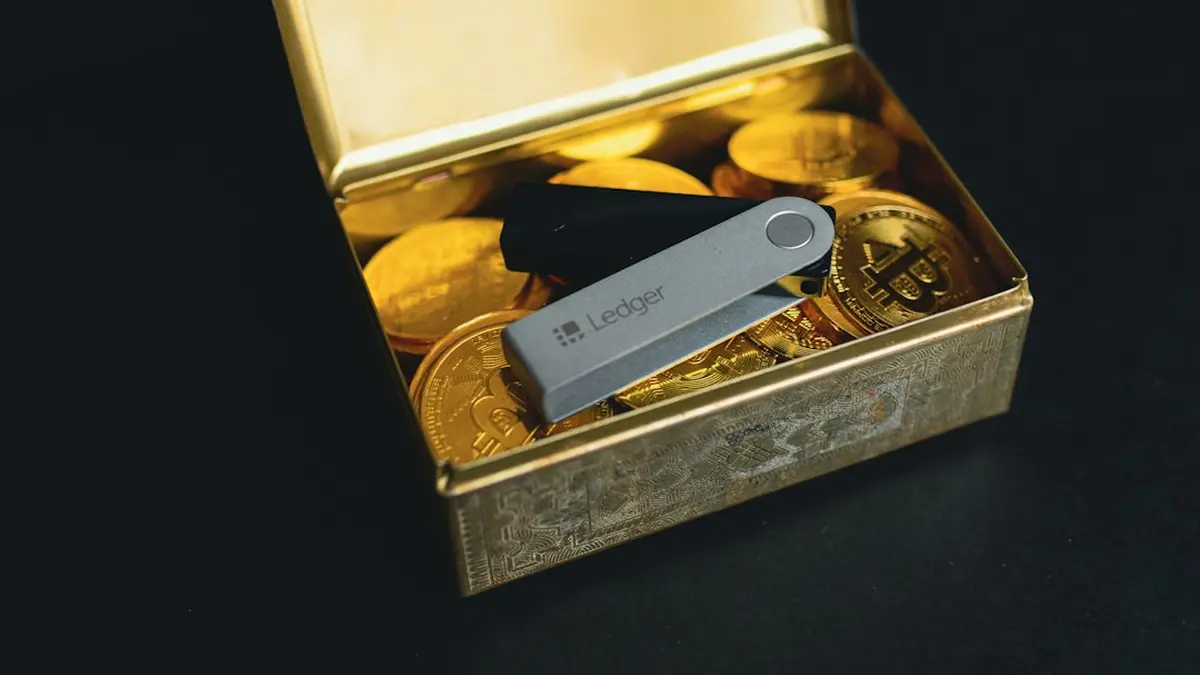
When you finish, your MetaMask extension will show one or more Ledger addresses, and every airdrop task or claim signed from them will need a press on the device. Plug in a USB cable before you start. MetaMask says the desktop extension does not support Bluetooth for Ledger, so pairing your Nano X's radio won't help here.
What you need
-
A Ledger Nano X or Nano S Plus and a USB cable
The cable is required for the browser extension.
-
Chrome v91+ or Firefox v114.0+
These are MetaMask's stated minimum versions.
-
Ledger Live desktop app
You use it to install or update the Ethereum app. MetaMask also uses it to bridge the connection on current browsers.
-
MetaMask installed from the official source
Researchers found more than 40 fake extensions impersonating MetaMask and other wallets on Firefox's add-on store.
Pairing it, one press at a time
These steps follow MetaMask's own support page. Do them in order.
- Install or update the Ethereum app through Ledger Live's Manager. Ledger Live lists it as installed and current when this is done.
- Connect the Ledger by USB and unlock it with your PIN. The device dashboard appears.
- Open the Ethereum app on the device. The screen shows that the application is ready.
- Turn on blind signing in the Ethereum app's settings. MetaMask says some contract interactions fail without it, and most claim and quest contracts are exactly that kind of interaction. The setting reads as enabled when you're done.
- In MetaMask, open the account dropdown and choose "Add account or hardware wallet". A menu of options appears.
- Select "Add hardware wallet", then Ledger, and approve the browser pop-up. MetaMask now shows a list of addresses.
- Tick the addresses you want and confirm. They appear in your account list, labeled as Ledger accounts.
You can now check balances and sign sends, token transfers, NFT moves, contract calls and messages from those addresses. One seed can hold many farming addresses, and each one you tick here is separate. How to hold many farming addresses on one device is a job of its own.
Blind signing and what the screen shows
Turning on blind signing is the step farmers worry about, and they have reason to. Ledger's own security checklist says that a Ledger used through MetaMask loses Clear Signing, so you are typically blind signing. It points to Radiant Capital, which lost $50 million in October 2024 when compromised staff blind-signed a malicious contract.
The counterpoint is fair. The Ethereum Clear Signing standard went live on May 12, 2026, and MetaMask was one of its backers, so the gap is meant to close. These sources don't say which claim contracts render readably today. The rule I'd hold to is simple: if the device shows a function name, an amount and an address, read them. If it shows hex on a page you don't fully trust, reject it. Ledger describes a SetApprovalForAll approval as "like writing a blank cheque to a hacker", because it covers your current tokens and future ones too.
Rabby, Trezor and the chains this misses
Trezor: the same MetaMask page covers connecting a Trezor through the same "Add hardware wallet" menu. Trezor also pledged Clear Signing support by June 30, 2026.
Rabby: many farmers prefer it for its transaction preview. The sources behind this page cover only MetaMask's flow, so take Rabby's pairing steps from Rabby's own documentation.
Other chains: this pairing gives you Ethereum-app accounts. Solana and Cosmos campaigns need a wallet built for those chains, and the device's support for them is set by that wallet's own docs, not MetaMask's.
When MetaMask can't see it
With the pairing done, every farming signature now needs a physical press. That protects you only if you stop and read the screen. Crypto Adventure puts the rest of the discipline plainly: hardware wallets suit vault accounts and high-confidence claims, "but they should not become daily click machines." Unfamiliar pages belong on a burner. Once a claim is done, revoke the approvals it left behind.
Comments
No comments yet. Be the first to comment!
Leave a Comment